Screen 1 Pretest/Posttest
The pretest/posttest questions appear on this slide. See Appendix 1 for the full test.
Graduate project · Instructional design plan
A five-phase instructional design plan, from needs analysis to evaluation, for teaching blind and visually impaired students to use Blackboard with a screen reader.
What it is: A complete instructional design plan I wrote as a graduate project, following all five ADDIE phases. It teaches students who are blind or visually impaired to use the campus Blackboard system with the JAWS screen reader: analysis, eight lesson plans, a flowchart and storyboards for a computer-based tutorial, a pilot test, an implementation with pretest and posttest, and a formal evaluation.
Worth a look: the program flow, which gives learners escalating hints after each wrong keystroke, and the evaluation, which turned learner and instructor feedback into sixteen specific revisions.
Northern Illinois University may receive several students a year who are blind or visually impaired and need to access information posted on the web-based Blackboard system for one or more courses. Some students require immediate and effective instruction in order to have the tools to be successful in courses that use Blackboard. The instruction described herein will provide trainers and learners with the techniques to access Blackboard using JAWS, a screen reader that allows persons who are blind or have a visual impairment to access applications on a personal computer (PC) running Microsoft Windows. If students are unfamiliar with accessing the internet using JAWS, they will need to undertake training prior to learning how to access Blackboard. If students have used JAWS to access the internet previously, but would like to reinforce their skills, they will be provided with material for independent review of basic Hypertext Markup Language (HTML) concepts and JAWS specific commands for accessing the internet.
The target audience is students at Northern Illinois University (NIU) who are blind or visually impaired and have a need to use the NIU Blackboard system with JAWS. While the students can seek assistance at any point in their university education, they will likely initially encounter the need to access Blackboard during their first semester of school. Blackboard is a web-based tool that provides one location for students to access documents, manage assignments, and communicate with their teachers and peers. Many professors at NIU post information on the NIU Blackboard website and require student interaction with this site in a variety of ways, making Blackboard a key component of some courses. Students need to be able to read information, access hyperlinks to other websites, download files, and participate in discussion groups, all of which is presented within the Blackboard environment. The resources the student will be required to access will vary with the course.
Some students who are blind or visually impaired will be able to access Blackboard without assistance upon first encountering the need to do so. Other learners will require an introduction to either the processes of gaining access, the content and layout of Blackboard, or both. The first indication that a discrepancy exists between what the learner needs to be able to do and what they are able to do, could come from the learner, the Center for Access-Ability Resources (CAAR), or the professor. These sources will indicate that either the student was unable to access the materials they required for class, or it took them an inordinate amount of time to do so and interfered with their ability to complete the assignment by the due date. When a student is unable to access the course materials in the same general way as their peers, their opportunities to gain knowledge, participate in group activities, express their abilities to their professors, and obtain an accurate assessment of their own performance can be severely limited. Emotionally, these limitations can be extremely frustrating and demotivating.
One way to solve this problem is to simplify the task. While simplifying the setup of Blackboard is possible, it requires communication with the manufacturer of the software and any changes would be at the manufacturer’s discretion. It would be a worthwhile, but time-consuming endeavor. Materials could also be provided in an alternative format, such as braille or large print. If materials were provided at the same time the rest of the class had access to them, such a plan would solve the problem. Often though, the student has to wait to have materials produced in an alternative format. Since Blackboard provides instant access and materials are generally accessible using a screen reader and/or optical character recognition (OCR) software, it is a good solution. By providing training in the use of Blackboard with JAWS, Blackboard can be utilized effectively by the blind or visually impaired population.
Because many of the students’ professors will be posting information on the NIU Blackboard website, the learners will need to be able to access resources that are posted on that site. The learners have either requested additional help or have been put in touch with a trainer by CAAR. This indicates that they have experienced difficulty getting access to the materials they require for class. The students realize that getting access to these materials is crucial to keeping up with their coursework and are expecting that, at the conclusion of training, they will be able to independently download the materials they need from Blackboard. Students will likely use these skills on a regular basis, perhaps as often as once or more per day, or as seldom as once a week.
It is assumed that the students share the common goal of successfully completing their classes and graduating from college. Many students are motivated to learn more about internet access, as they recognize that it applies to many areas of communication and research, both within and outside of school. Because accessing Blackboard with JAWS is somewhat complex and involves numerous steps, the students may have been frustrated by previous attempts to access Blackboard without instruction. Students will likely have had a long history of receiving one-on-one assistance. They may have been repeatedly disappointed because the assistance did not meet their needs. Students may feel that sighted instructors do not understand what they are experiencing or how to help them. Students are likely to express a range in the level of independence they prefer. Some may value independence to the extent that they resist asking for help, while others may be complacent to the point where they are hesitant to embrace independence.
Learners will have succeeded in gaining admission to NIU and will be blind or visually impaired, but may have few other characteristics in common. The age range of the target audience is that which is appropriate for college, likely 18 to 30 years of age, but could range from 17 years old and up. The learners could potentially be of either gender and could be of any ethnic background. Some may live with their parents; others will live in the dormitory or in an off-campus apartment. Most will not have children at home, although some may have a significant other. It is assumed that they will speak English.
The learners will have had a variety of experiences by the time they enter the college environment. They will have had a high school education or its equivalent and have a reading level appropriate for college. The students will likely have had significant experience learning in a one-on-one situation using Braille or large-print materials, verbal instruction, and audio training materials. Students will likely have had exposure to computers, the JAWS application, and the internet. Students using JAWS, will generally have good keyboarding skills and the manual dexterity necessary for typing. The level of comfort they exhibit using JAWS and the internet will vary. They may or may not have been employed in jobs that required the use of computers or the internet.
Students will need to be able to touch type, be familiar with the layout of the keyboard, be able to start their computers, understand basic Windows commands and structure, understand the basic reading commands used for JAWS, be able to connect to an internet service provider (ISP), open Internet Explorer and read a web page on a familiar computer, and be able to read Braille or hear the instruction. Their abilities to access Blackboard will vary based on past experiences accessing the internet with JAWS.
The student will require a computer with JAWS 5.1 or newer installed; Internet Explorer 6 access to the internet; a username and password to access Blackboard; enrollment in at least one class that has material posted on Blackboard for download; and access to a CD player to utilize the instructional audio CD.
Students will be able to choose a setting in which they feel most comfortable. The setting may be in their home or dormitory room using their own computer, in one of NIU’s computer labs, or in the CAAR office. If training is to take place at their home, and a trainer would have to travel more than 15 minutes from NIU, training will be done at one of the NIU ITS computer labs instead. The trainer is expected to meet with the student one-on-one. The student should set aside two hours for the initial training, and allow time as necessary once or twice a week for follow-up. The training should not take more than three sessions, but more can be done if necessary. The CAAR office can provide additional support, in terms of a Braille embosser and readers to support the student. General computer support is provided by the NIU ITS helpdesk.
The student will be able to efficiently utilize Blackboard and JAWS to download course related documents.
Obtain permission from student to observe while they browse the internet using JAWS. Start the student from the Desktop and have them access Google and perform a search. Listen for the keyboard commands used while the student browses the internet. Note if the user is simply using the tab key and the basic JAWS reading keys or is taking advantage of more advanced JAWS commands, such as the Links list, Frames list, or the JAWS Find command.
| Tasks | Objective and prerequisite skills, knowledge, or abilities |
|---|---|
1. Start the computer and Internet Explorer
| Prerequisites
|
2. Log into Blackboard
| Prerequisites
Objectives
|
3. Find course page in Blackboard
| Prerequisite
Objectives
|
4. Find the file to download
| None listed. |
5. Download the file to the My Documents folder
| Prerequisites
Objective
|
Each lesson follows the same instructional sequence, from focusing on goals through extending and transferring the skill.
| Instructional sequence | Instructor activity | Student activity | Technology tools |
|---|---|---|---|
| Focus on goals | This lesson will discuss hyperlinks, which are the main way people navigate the Internet. Inform the student that this lesson will help them to navigate this motivating sample web site and other sites they are interested in. | Student will briefly examine a sample motivating web page opened by the instructor. | A motivating web page containing several hyperlinks that lead to distinctly different locations. |
| Recall relevant content knowledge | Selecting a hyperlink opens a new document, similar to opening another document in MS Word. | Have student come up with other comparisons to their previous computer experience. | |
| Present and organize content knowledge | Explain that hyperlinks are text that, when selected, take a user from one page to another. When using JAWS, the student can get from one hyperlink to the other using the tab key. The links can be named whatever the designer wants. Jaws indicates the presence of a link by announcing the word “Link” | Student will briefly examine a sample motivating web page opened by the instructor. | A motivating web page containing several hyperlinks that lead to distinctly different locations. |
| Take action and monitor learning progress | Observe student; direct to appropriate behavior if necessary; answer any questions. Indicate that the student should attend to the page summary information that JAWS speaks when the page first opens. | Student will practice using the tab key to move between hyperlinks and activate them. | A motivating web page containing several hyperlinks that lead to distinctly different locations. |
| Synthesize and evaluate | Listen for student understanding and correct if necessary. The student should indicate that hyperlinks move the user from page to page by using the tab and enter keys. | Student summarizes how links work, how to get to them, and activate them. | |
| Extend and transfer | Prompt student to think about different ways they might find links organized on a web page. Indicate that some web pages have general site links at the top of the page and more specific links further down. A site that uses this strategy is www.afb.org. | Student indicates when they have found links to be most helpful and how they might design a page to be user friendly. |
| Instructional sequence | Instructor activity | Student activity | Technology tools |
|---|---|---|---|
| Focus on goals | This lesson will cover form fields in a web page. Being able to use forms is essential to successfully using Blackboard. Inform the student that this lesson will help them to navigate this motivating sample web site and other sites they are interested in. | Student will briefly examine a sample motivating web page opened by the instructor. | A motivating web page containing several form fields. |
| Recall relevant content knowledge | Forms in on the Internet are similar to paper forms. They can ask for any information and are typically collecting information to store. | Listen, answer and ask questions | Tactile example of paper form. |
| Present and organize content knowledge | Explain the forms mode feature. First describe forms as the way that information is entered into a web page. Explain that a form field is a component of a form. One example of a form field is a text box. A text box holds information such as a name or address. JAWS indicates the presence of a text box by speaking the word “Edit”. Ask if the student has ever used forms mode. Let the student know that to use forms, JAWS must be placed in forms mode. Indicate to the student that this feature exists to disable other JAWS keyboard shortcuts and allow data entry into a form. Remind the student that to get into forms mode, press the enter key when a form field has focus. The F key is the keyboard shortcut to get to a form field. | Student examines tactile example. | Present tactile example of a form on a web page. |
| Take action and monitor learning progress | Help student to navigate to the sample web page where they can enter and submit information. Indicate that the student should attend to the page summary information that JAWS speaks when the page first opens. Also, have the student listen for the word “Edit” as the page is read. | Student will use forms mode to enter information in a sample web form and submit the information. | Sample web site with forms and a page indicating that the submitted form has been received. |
| Synthesize and evaluate | Ask the student the keystroke to get to a form field, how to get into forms mode. Ask the student why forms mode is used. | Student starts at a new page. Have them find the form field, enter information, and submit the form. | A second sample website with a form that can be submitted and a confirmation page. |
| Extend and transfer | Ask the student where on the web they typically encounter forms and what kinds of information they might be asked to enter. Also discuss the importance of making sure a site is secure and reputable before entering personal information. Discuss whether they feel that it would be safe to enter personal information at Amazon.com. | Listen, answer and ask questions. |
| Instructional sequence | Instructor activity | Student activity | Technology tools |
|---|---|---|---|
| Focus on goals | This lesson will discuss the use of a web page component called frames which are used in Blackboard. Inform the student that this lesson will help them to navigate this motivating sample web site and other sites they are interested in. | Student will briefly examine a sample motivating sample web page opened by the instructor. | A motivating web page containing several hyperlinks that contains three frames. |
| Recall relevant content knowledge | Frames divide content on a web page, just like a window frame divides areas of a window. | Listen, answer and ask questions. | |
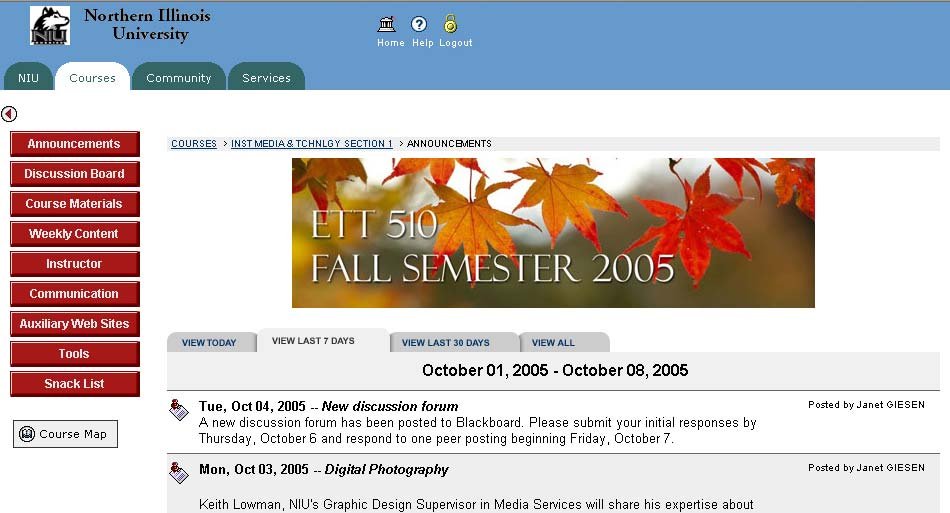
| Present and organize content knowledge | Indicate that all frames are displayed at the same time and each frame contains related information. JAWS indicates the presence of a frame by announcing “frame begin” and “frame end.” | The Student explores a tactile version of the NIU Blackboard website with frames as well as an sample web page. | A tactile page that is divided into three sections in the same way Blackboard web page is divided. |
| Take action and monitor learning progress | Indicate that the student should attend to the page summary information that JAWS speaks when the page first opens. As the student is doing the activity, indicate to them when JAWS is speaking the name of the frame. Point out that one frame contains navigation information while the other frame contains the actual page content. Have the student revisit the navigation or title frame to notice that those pages do not change, even when the content area does. | The student moves from one frame to another in the sample web page. | A sample web page with three frames: a navigation frame, a title frame, and a content frame. All frames must be named. |
| Synthesize and evaluate | Ask the student to indicate the title and function of the different frames as they are encountered. | Student describes frames in their own words. Given a different web page with frames, student can navigate to the various sections. | A sample web page with three frames: a navigation frame, a title frame, and a content frame. Names should differ from those used in practice. |
| Extend and transfer | Remind students that frames can be arranged in a variety of ways and can have any name, depending on what the designer of the web page prefers. | Have students brainstorm different designs for web pages and come up with different names for the sections. | Heat sensitive pen that creates raised lines on paper for student to draw ideas. |
| Instructional sequence | Instructor activity | Student activity | Technology tools |
|---|---|---|---|
| Focus on goals | Web pages can have many of hyperlinks on them the student may not be interested in. Being able to quickly access the links the student wants will save a great deal of time and confusion. Inform the student that this lesson will help them to navigate this motivating sample web site and other sites they are interested in. | Student will briefly examine a sample motivating sample web page opened by the instructor. | A motivating web page containing several hyperlinks that lead to distinctly different locations. |
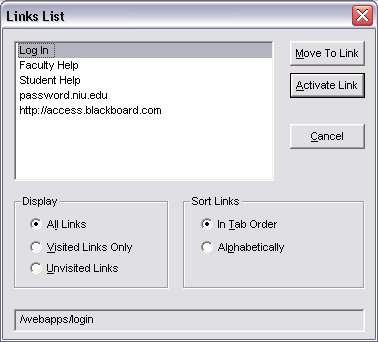
| Recall relevant content knowledge | Ask the student to describe a hyperlink. The Links List dialog organizes these hyperlinks. Describe the term dialog as a window that opens, just like the Save or Open windows in MS Word. | The student describes a hyperlink. | |
| Present and organize content knowledge | Indicate the proper keystrokes to open this dialog and show the student that typing the first letter of the link will take them to that link quickly. If there are multiple entries that begin with the same letter as the item they are looking for, the student may have to press the first letter of that item more than once. Student should be able to indicate what the dialog contains and what the various features are used for. Supplement their understanding if necessary. | Have the student tab through the dialog to become familiar with the different components and features. | Computer with JAWS displaying this dialog box. |
| Take action and monitor learning progress | Observe student doing the activity and correct behavior as necessary. Suggest shortcuts, such as choosing the link by pressing the first letter of the link and then hitting enter to activate it instead using the arrow keys and then tabbing to the OK button. This is just like clicking the link and will take the user to a different web page when the dialog closes. | Using several sample web pages, have the student open the dialog box, examine the links, and activate them to go to another page. | A sample web page with a number of distinct links. |
| Synthesize and evaluate | Prompt student to come up with as many features of the dialog as possible. Verify correct understanding of how to get into and out of the dialog. | Student recites the methods of getting into the Links List dialog and describes the most salient features of this dialog. | Student can use a sheet with the list of commands if they do not remember. |
| Extend and transfer | Discuss how the names of the links are taken out of context in a links list dialog; ask student the implications of this. | Student can discuss that it requires that the link be well named or that the user knows the name of the links they want. |
| Instructional sequence | Instructor activity | Student activity | Technology tools |
|---|---|---|---|
| Focus on goals | Blackboard uses frames to organize content. While this is initially a little more challenging, it makes it easier to find the content the user is interested in. Inform the student that this lesson will help them to navigate this motivating sample web site and other sites they are interested in. | Student will briefly examine a sample motivating sample web page opened by the instructor. | A motivating web page containing three named frames. |
| Recall relevant content knowledge | Frames were discussed in a previous lesson. This is a way to quickly access a frame. | Student explains what a frame is in a web page | |
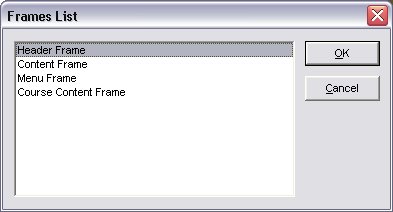
| Present and organize content knowledge | Indicate the proper keystrokes to open the Frames List dialog. Indicate the user can type the first letter of the frame to get to the frame quickly. If there are multiple entries that begin with the same letter as the item they are looking for, the student may have to press the first letter of that item more than once. | Have student tab through the dialog to become familiar with the different components and features. | Using a sample web page containing clearly named frames. |
| Take action and monitor learning progress | Observe the student as they move through the dialog and select links. Check their understanding by having them explain what their doing and the consequences as they do it. | Have the student open the dialog box, examine the frames, and activate them to go to another page. | Using several simple sample web pages containing clearly named frames. Have the tactile version used previously with frames named in Braille. Student can read the Braille and then compare this to what appears in the Frames List dialog. |
| Synthesize and evaluate | One of the main differences between the Links List and Frames List is that the Links List takes the user to a new page, while the Frames List takes her to a different spot on the same page. | Have the student discuss the difference between as Links List and Frames List dialog box. | |
| Extend and transfer | Discuss areas where the Frames List dialog would be helpful, and when it is easier just to read through the web page. The student should also be informed of the M shortcut key, which cycles the user through frames without using the frames list dialog. | Student can articulate how different frame configurations would change what appears in the Frames List dialog. |
| Instructional sequence | Instructor activity | Student activity | Technology tools |
|---|---|---|---|
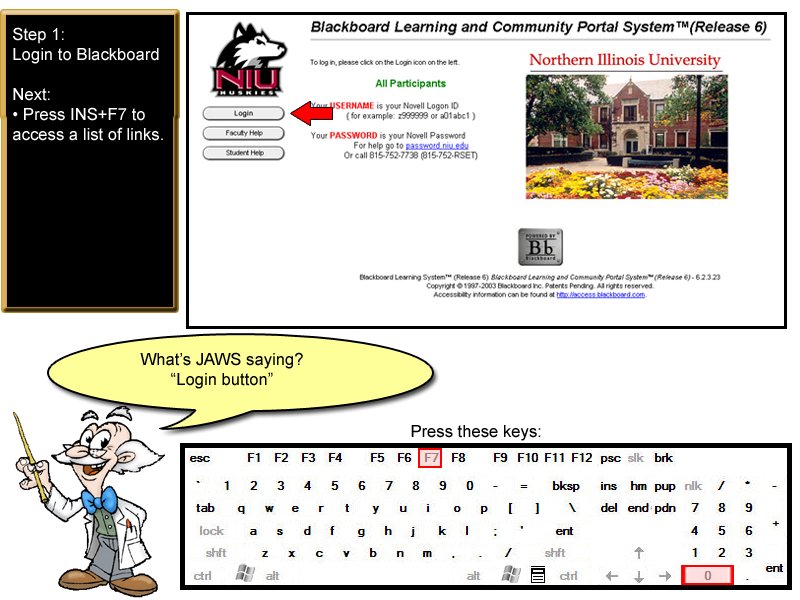
| Focus on goals | The tutorial will indicate that in order to use Blackboard, all users must login to get their customized information | Listen, answer and ask questions. | Computer Tutorial |
| Recall relevant content knowledge | Indicate that this step will use the hyperlinks in the Links List dialog and the student will be required to enter information in a form using forms mode. | Listen, answer and ask questions. | Computer Tutorial |
| Present and organize content knowledge | The tutorial will first present an audio and visual walk through example of how to do the procedure. Instructor is available for questions. The steps that will be presented are:
| Listen, answer and ask questions. | A computer Tutorial as well as large print and braille materials describing the steps will be provided. |
| Take action and monitor learning progress | The application will prompt with the next step, but will allow only correct input. Student will be given two tries in each step. Instructor is available for questions. | Student will follow instructions to proceed through the proper steps. | A computer Tutorial as well as large print and braille materials describing the steps will be provided. |
| Synthesize and evaluate | A conclusion screen will recite the steps quickly. After successful completion of the mock login process, student will be given a count of how many times they made a keystroke mistake. They will be prompted if they want to do this lesson over again or continue to the next lesson. | Student listens to summary and practices steps again or moves to next lesson. | Computer Tutorial |
| Extend and transfer | Student will be given the opportunity to temporarily exit the training program to try the procedure in the real Blackboard environment. If they do not succeed in that environment, they will be given troubleshooting tips. The student can return to the training program at any time. | Student practices in real Blackboard environment. | Computer Tutorial, Actual Blackboard session. |
| Instructional sequence | Instructor activity | Student activity | Technology tools |
|---|---|---|---|
| Focus on goals | The tutorial will indicate that Blackboard can contain sections for some or all of the students’ classes. Once in this section, all files for that class will be available. | Listen, answer and ask questions. | Computer Tutorial |
| Recall relevant content knowledge | The tutorial will indicate that this step requires the use of hyperlinks, the Links List dialog, and the Frames List dialog. | Listen, answer and ask questions. | Computer Tutorial |
| Present and organize content knowledge | The tutorial will first present an audio and visual walk through example of how to locate the Courses page. Instructor is available for questions. The steps that will be presented are:
| Listen, answer and ask questions. | A computer Tutorial as well as large print and braille materials describing the steps will be provided. |
| Take action and monitor learning progress | The application will prompt with the next step then allow only correct input. Student will be given two tries in each step. Instructor is available for questions. | Student will follow instructions to proceed through the proper steps. | A computer Tutorial as well as large print and braille materials describing the steps will be provided. |
| Synthesize and evaluate | A conclusion screen will recite the steps quickly. After successful completion of the mock login process, student will be given a count of how many times they made a keystroke mistake. They will be prompted if they want to do this lesson over again or continue to next lesson. | Student listens to summary and practices steps again or moves to next lesson. | Computer Tutorial |
| Extend and transfer | Student will be given the opportunity to temporarily exit the training program to try the procedure in the real Blackboard environment. If they do not succeed in that environment, they will be given troubleshooting tips. The student can return to the training program at any time. | Student practices in real Blackboard environment. | Computer Tutorial, Actual Blackboard session |
| Instructional sequence | Instructor activity | Student activity | Technology tools |
|---|---|---|---|
| Focus on goals | The tutorial will indicate that, for any course, several files can be posted on Blackboard. These can best be accessed by downloading them to the computer’s hard drive and opening them from there. | Listen, answer and ask questions. | Computer Tutorial |
| Recall relevant content knowledge | The tutorial will indicate that this step requires the use of hyperlinks, the Links List dialog, and the Frames List dialog. The student will be saving the file using steps that are very similar to saving a file in MS Word. | Listen, answer and ask questions. | Computer Tutorial |
| Present and organize content knowledge | The tutorial will first present an audio and visual walk through example of how to do the procedure. Instructor is available for questions. The steps that will be presented are:
| Listen, answer and ask questions. | A computer Tutorial as well as large print and braille materials describing the steps will be provided. |
| Take action and monitor learning progress | The application will prompt the student with the next step then allow only correct input. Student will be given two tries in each step. Instructor is available for questions. | Student will follow instructions to proceed through the proper steps. | A computer Tutorial as well as large print and braille materials describing the steps will be provided. |
| Synthesize and evaluate | A conclusion screen will recite the steps quickly. After successful completion of the mock login process, the student will be given a count of how many times they made a keystroke mistake. They will be prompted if they want to do this lesson over again or continue to next lesson. | Student listens to summary and practices steps again or moves to next lesson. | Computer Tutorial |
| Extend and transfer | Student will be given the opportunity to temporarily exit the training program to try the procedure in the real Blackboard environment. If they do not succeed in that environment, they will be given troubleshooting tips. The student can return to the training program at any time. | Student practices in real Blackboard environment. | Computer Tutorial, Actual Blackboard session |
For a trainer to be able to successfully teach this lesson, they will need a few basic skills. The trainer must be comfortable with the basics of Internet Explorer, JAWS and Blackboard. Specifically, the trainer should be familiar with the reading commands in JAWS as well as the keyboard shortcuts used on the Internet. The trainer needs to become familiar with the layout of the NIU Blackboard site and any unique attributes of that site. Help information for Blackboard is available on the NIU ITS website as well as the Blackboard website. Additionally, numerous resources and useful links are also available at the website www.niu.edu/facdev. Help for Blackboard can also be obtained by browsing to webcourses.niu.edu and selecting the Student Help link. Technical support for Blackboard can be obtained from the NIU helpdesk. JAWS has excellent help resources. These can be obtained by navigating to the JAWS folder in the Windows start menu, and selecting help. View the section on using the Internet with JAWS. JAWS also produces a tutorial designed to teach web browsing skills called Surf’s Up!, which is available from www.freedomscientific.com.
For computers in NIU labs, technical support is available by calling the Help Desk or submitting a trouble ticket. If this procedure is followed, it is unlikely the problem will be resolved during class time. For JAWS support, a toll call can be made to the Freedom Scientific help line. The problem may or may not be resolved during class time. Prior to teaching the lesson, it is recommended that the trainer run through the lesson on the computer that will be used for the training to verify that it is working properly. If the client is using a computer in their home, they will be required to have access to any support resources, including their Internet service provider, hardware warranty support, and Freedom Scientific telephone support. There are limited resources on the NIU campus to aid in the development of training materials. NIU ITS may be able to provide some support in creating materials for Blackboard and the CAAR office may be able to provide assistance in creating training materials for JAWS and the Internet. The CAAR office also has Braille translation software and Braille embossers for use in creating handouts and tactile representations of the Internet.
The availability of equipment will be contingent upon the location of the training. If the training takes place in the student’s home, it is the student’s responsibility to make sure they have a computer running Internet Explorer 6 with Internet access and JAWS properly installed. Since this training will be done in a one-on-one setting, only one computer is required. NIU has one Windows based PC computer with JAWS installed in virtually every computer lab on campus. The student can choose the lab that they prefer. The software available in the NIU lab includes Internet Explorer 6 and JAWS 5.x. These versions are compatible with the instructions in this lesson. The student may wish to bring a USB storage device to save any files they download. Most of these specialized computers are very accessible to students with disabilities. For students with physical disabilities, it will be important to verify that the computer lab is accessible via a method other than stairs. Stairs are typically an obstacle in some of the residence hall labs. Some labs have tables with a height adjustment while others do not. Student in a wheelchair may find an adjustable table preferable. If students want to practice, and they do not have the required equipment at home, the NIU computer labs are open late. Because JAWS is only available for Windows based computers, students would not be able to use these lessons with a Macintosh.
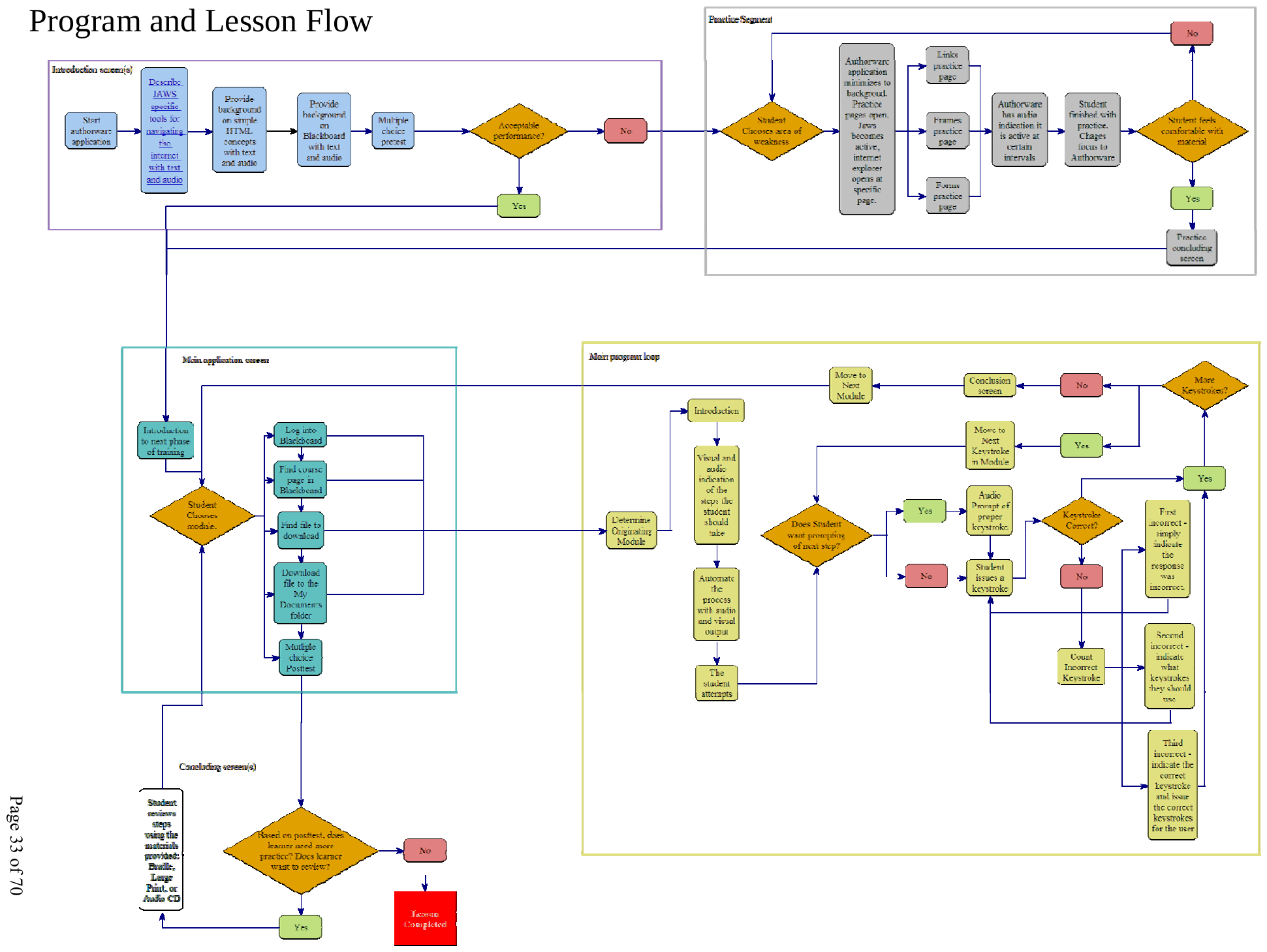
In the development phase, the results of the analysis and design phases are used to create a tangible product, which includes a flowchart and storyboards. The effectiveness of this product and any needed improvements to it are then determined by performing a pilot test. The product being designed is intended to instruct a visually impaired student to access the Northern Illinois University Blackboard site with JAWS and download a file.
Before the lesson begins, the learner is asked to take a pretest. This same test will be given as the posttest at the conclusion of the lesson. The lesson itself starts by reviewing basic web concepts. The concepts covered are hyperlinks, form fields and frames. The learner is given an opportunity to practice each of these using simple web pages designed to demonstrate these specific concepts.
After having an opportunity to practice, the student is provided with an overview of Blackboard and instructed how to download a file to his or her computer from Blackboard. The instructions are divided into the broader categories of logging into Blackboard; finding the correct course page; finding the file to download; and downloading the file to the My Documents folder. There are a number of alternatives for providing instruction. The instruction can be delivered verbally by the instructor; the student can follow instructions provided by an audio CD; JAWS can be used to read from a computer document; Braille instructions can be followed; or the student can use a computer-based training application that verbally prompts for the correct input and then only accepts that input (this application will be discussed in more detail later). However the student decides to receive instruction, the student should be encouraged to practice the steps independently at the conclusion of the guided lesson. The student will be asked to complete the posttest and provide feedback. For a more detailed description of the lesson components, see the flowchart and storyboard that follow.
The storyboard screens below are the presentation that accompanies the lesson, in order.
The pretest/posttest questions appear on this slide. See Appendix 1 for the full test.
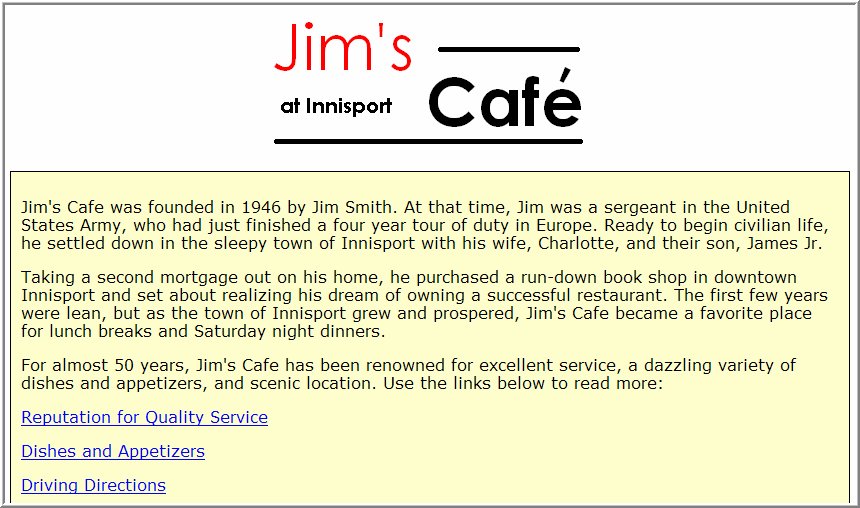
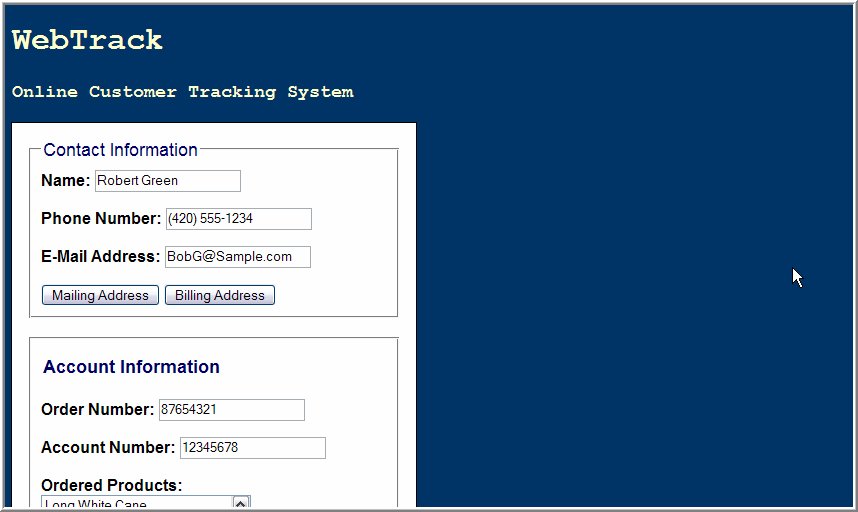
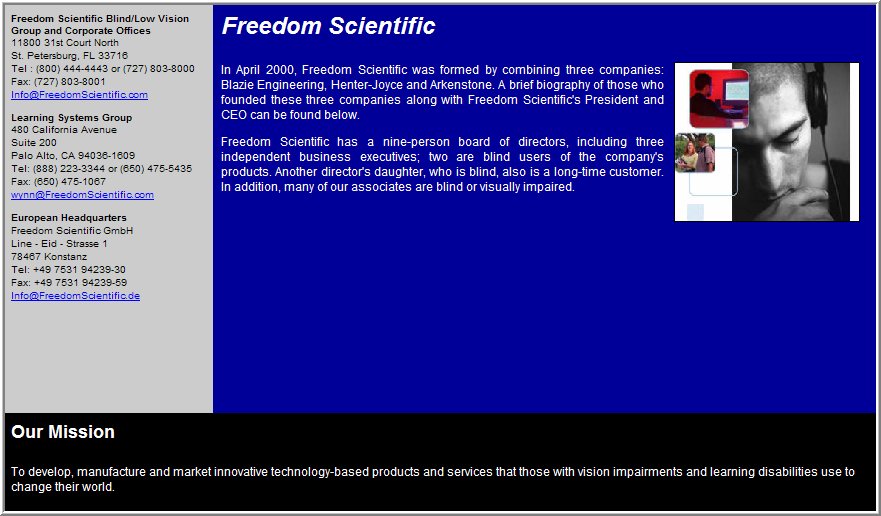
A pilot test of training materials designed to instruct a visually impaired student to access the Northern Illinois University Blackboard site with JAWS and download a file was undertaken on 9/29/2005 with one subject. The subject was a university student who had a visual impairment and had used JAWS for a number of years, but had no previous experience with Blackboard.
Data from the pilot test was collected informally through observation. The instruction was entirely hands on; the student had access to a list of steps in Braille and was encouraged to follow this list to download a file. The instructor was present to answer any questions and to provide background information when necessary. During the evaluations, the subject accessed Blackboard on a computer running Windows 98, using a standard keyboard and JAWS version 5.1 or higher.
The pilot test utilized a one-on-one structure where the student was asked to follow specific steps. The instructor noted that the learner had difficulty remembering the steps he needed to take because he did not have any background in why particular commands are used or any practice using them in a simpler context before the lesson. Because of this, more background information was added to the lesson. Information regarding hyperlinks, forms and frames was added. In addition, information about Blackboard and how it is structured was added to the lesson. This additional information is to be discussed before the student performs any steps with the actual NIU Blackboard site. With these changes, students should have a more complete conceptual framework in which to place the commands they need to memorize. It is hoped that this will make it easier for students to understand the reason why certain steps are necessary. The task list was also modified by removing extra wording. This should make the commands that need to be executed more apparent so that they can be read quickly. With these modifications, students should have to spend less time referring to the handouts.
A second change that resulted from the testing was the addition of an audio CD. This was provided in addition to the Braille and large print materials that were already supplied. Braille can be an inefficient medium to use as a computer reference for several reasons. First, some people read Braille faster and more accurately than others. If learners are slow Braille readers and have to focus too intently on reading Braille, they may lose perspective on the lesson as a whole. Secondly, in order to read the Braille, the learners have to take their hands off the keyboard, which tends to slow them down; at times, they experience difficulty re-orienting themselves to the keyboard. Also, when learners place the Braille in their bags to take to and from the computer area, the Braille tends to get crushed and become less readable. Additionally, Braille is very space consumptive, while a CD is lighter and takes far less space. A third change that resulted from the testing was the addition of an online learning application to manage the instruction. An interface is being created that simulates accessing Blackboard and downloading a file, yet limits the input to only that which will allow the learner to achieve his or her goal. The restrictive interface was created to allow users to understand the proper sequence of events without the great potential for confusion that comes from using the actual website. When teaching the user to log onto Blackboard using Jaws, a mistake or error in the page can take the user into a context where the instructions do not apply, making it difficult to reorient him or herself. This application also allows the user to practice repeatedly and in private. By allowing the user to practice away from the instructor, students may practice more and be more willing to risk making mistakes. The user is prompted by the software when they have made a mistake and then provided a second opportunity. If the user makes a mistake twice, the software will perform the action for the user and move to the next step. The goal here is to prevent frustration, while allowing the user to experience the entire process. If the user has made several mistakes, they can return and practice the process again after the lesson is complete. Finally, a short pretest and posttest were added to assess the value of the instruction in improving learners’ skill levels. The learners will take these tests immediately before and after the instruction.
The modifications undertaken as a result of the pilot test are aimed at increasing the speed and independence with which a learner can complete instruction. The instruction will likely be among the user's first exposure to Blackboard and, as such, should be a positive, encouraging experience, which allows the user to proceed with their actual schoolwork as quickly as possible.
The implementation phase is where instruction is delivered. An implementation of the lesson designed to instruct a visually impaired student to access the Northern Illinois University Blackboard site with JAWS and download a file was undertaken on 11/24/2005. The subject of the lesson had no prior experience using JAWS and only limited experience using Blackboard. This subject was not visually impaired, but was instead prevented from viewing the screen while completing the training.
The subject was provided with a pretest and a posttest that utilized the same 10 questions in the same order. The pretest was given before any instruction was provided and the posttest was given at the conclusion of instruction (see Chart 1 and Appendix 1). During instruction, the subject was provided with a list of common commands in JAWS that are used to access the Internet as well as a list of steps to download a file from Blackboard (see Appendix 2). The subject was encouraged to provide critical feedback at any point in the lesson when she had input she felt would improve the lesson. During the evaluation, the subject accessed Blackboard on a computer running Windows 98, using a standard keyboard and JAWS version 5.1 or higher.
| Question | Pretest | Posttest |
|---|---|---|
| 1 | Incorrect | Correct |
| 2 | Incorrect | Correct |
| 3 | Incorrect | Correct |
| 4 | Incorrect | Correct |
| 5 | Incorrect | Correct |
| 6 | Incorrect | Correct |
| 7 | Correct | Correct |
| 8 | Correct | Incorrect |
| 9 | Correct | Correct |
| 10 | Incorrect | Incorrect |
| Overall total | 30% | 80% |
The Evaluation phase is where the effectiveness of the lesson is measured. The implementation of this lesson yielded valuable input into the strengths of the lesson and the ways this lesson could be improved. The questionnaire completed by the student and instructor at the conclusion of the lesson validated the input provided during the lesson. In the questionnaire, the student gave the strongest ratings to the Assessments and Outcomes categories; which received 80 and 90 percent respectively. The strong scores in the Outcomes and Assessments categories are consistent with the student’s achieving the objective of being able to download a file successfully at the end of the lesson. The high rating in the Assessment category is consistent with the pretest/posttest results. The student scored 30% correct on the pretest and 80% correct on the posttest. This is a good indication that the lesson was largely effective. The two weakest areas were Content and Materials, which received 55 and 56 percent respectively (see Chart 1 and Appendix 2). The weak scores on the Content and Materials sections are echoed in the student’s comments. The student suggested removing some overly technical and irrelevant material from the lesson. In addition, the student suggested providing more background information at the beginning of the lesson and better descriptions of the sample web pages before having students examine them. As the student indicated, another way to improve the materials would be to include the objectives of the lesson in the student materials.
| Category | Actual | Possible | % | Average (out of 5) |
|---|---|---|---|---|
| Presentation | 29 | 40 | 73% | 3.6 |
| Content | 11 | 20 | 55% | 2.8 |
| Materials | 14 | 25 | 56% | 2.8 |
| Assessments | 12 | 15 | 80% | 4.0 |
| Outcomes | 9 | 10 | 90% | 4.5 |
| Overall total | 75 | 110 | 68% | 3.5 |
| Category | Actual | Possible | % | Average (out of 5) |
|---|---|---|---|---|
| Learner Needs | 7 | 10 | 70% | 3.5 |
| Outcomes | 15 | 20 | 75% | 3.8 |
| Assessments | 10 | 15 | 67% | 3.3 |
| Activities/Strategies | 35 | 50 | 70% | 3.5 |
| Overall total | 67 | 95 | 70% | 3.5 |
The instructor’s questionnaire also provided valuable feedback. In the questionnaire, the instructor gave the strongest rating to Outcomes, which is reflected in the fact that the student was able to successfully download a file at the conclusion of the lesson and had an increased knowledge of JAWS and Blackboard as indicated in the pretest and posttest scores. The instructor gave the weakest ratings overall to the Assessments category. This is due to the inclusion of test item eight in the pretest/posttest, which, as the learner indicated, should be eliminated because the information was not covered in the lesson (see Chart 2 and Appendix 3). The instructor’s comments focused on clarifying and adding additional details about using JAWS on the Internet and modifying the student materials to reflect this additional content. The instructor also noted that the lesson was too long to hold the students’ interest. While the extended length of the lesson is likely due to the additional time devoted to student comments, the lesson time should be monitored in the future in case it needs to be reduced. The instructor also recommended that the sample web pages be reduced in size. This should reduce the time it takes to complete the lesson and make the web pages more motivating to the students. The sample web pages should also be referenced via hyperlink from a single web page. By accessing the sample web page in this way, the student will hear the page description that is provided by JAWS when the sample page opens.
The changes that were requested by both the student and the instructor, as indicated above, have been made as indicated here:
The same test was used for both the pretest and the posttest.
| Question | Pretest | Posttest |
|---|---|---|
| 1 | Incorrect | Correct |
| 2 | Incorrect | Correct |
| 3 | Incorrect | Correct |
| 4 | Incorrect | Correct |
| 5 | Incorrect | Correct |
| 6 | Incorrect | Correct |
| 7 | Correct | Correct |
| 8 | Correct | Incorrect |
| 9 | Correct | Correct |
| 10 | Incorrect | Incorrect |
| Score | 30% | 80% |
Used in addition to computer-based demonstration web pages.
We will be discussing how to use JAWS to access Northern Illinois University’s Blackboard system. Specifically, we will be discussing how to download a file from Blackboard. In order to access Blackboard, you will need to have an NIU ZID and a password. By the end of the lesson, you should be able to download a file from Blackboard without any assistance.
Before we discuss using JAWS and Blackboard, we will review some basic web concepts. Hyperlinks, form fields and frames will be discussed and you will have an opportunity to practice using each of these on some simple web pages. In addition, we will be discussing how to access hyperlinks quickly using the Links List dialog and how to use the Frames List dialog to efficiently move to a specific area of a web page. By the end of the lesson you should be able to verbally explain and demonstrate the function of hyperlinks, form fields and frames both with and without the Links List and Frames List dialogs.
JAWS is a screen reader that is designed to assist the user in accessing Windows solely from the keyboard. Because of this, it utilizes a large number of keyboard shortcuts. Keys must be pressed quickly in order for the shortcuts to work correctly. Keep the following keyboard shortcuts in mind.
Name: Student
| # | Statement | Rating (1 low, 5 high) | Comments |
|---|---|---|---|
| Presentation | |||
| 1 | The information was presented in a clear and straightforward manner. | 3 | |
| 2 | Directions were clearly communicated to me. | 3 | |
| 3 | I was able to complete the tasks assigned to me with a minimum extra assistance. | 4 | |
| 4 | The order of the presentation made sense. | 2 | |
| 5 | I had a chance to practice each step. | 5 | |
| 6 | The instruction was appropriately paced (pauses were sufficient to allow you to complete the task). | 5 | |
| 7 | The length of the lessons was about right. | 4 | |
| 8 | I received useful feedback from the instructor on my performance. | 3 | |
| Content | |||
| 9 | The instruction was neither too simple nor too complex. | 2 | Some areas need more clarification |
| 10 | The level of detail was right for the task I was assigned to do. | 2 | Some areas included unneeded information |
| 11 | Background information was complete and up to date. | 4 | |
| 12 | The examples were helpful. | 3 | More examples needed. Current examples helpful |
| Materials | |||
| 13 | The student materials clearly stated the goals and expectations of the lesson. | 1 | Has only tasks |
| 14 | The student materials helped me to achieve the goals and expectations of the lesson. | 3 | |
| 15 | The student materials allowed me to work independently. | 1 | Not opportunity given to work independently |
| 16 | The student materials will be an effective reference for school. | 5 | |
| 17 | The student materials fit my learning style. | 4 | |
| Assessments | |||
| 18 | I was tested on only what was covered in the lesson. | 2 | |
| 19 | The test was clear and understandable. | 5 | |
| 20 | The instructor made clear in advance how I would be tested. | 5 | |
| Outcomes | |||
| 21 | After this lesson, I feel that I will be able to independently access Blackboard using JAWS. | 4 | |
| 22 | I can now download a file from Blackboard independently. | 5 | |
Name: Jeffrey Williams
| # | Statement | Rating (1 low, 5 high) | Comments |
|---|---|---|---|
| Learner Needs | |||
| 1 | Learners find the material readable and easy to work with. | 4 | |
| 2 | The materials help the learners achieve proficiency at downloading a file from Blackboard using JAWS. | 3 | |
| Outcomes | |||
| 3 | The learners achieved the intended outcomes. | 5 | |
| 4 | No critical skills were overlooked. | 4 | Brief instruction in reading with JAWS had to be added. This needs to be added to the instructor’s materials |
| 5 | None of the material was too simple for the learners. | 3 | Some of the questions used at the conclusion of the lessons were too simple |
| 6 | No critical prerequisites were overlooked. | 3 | Learner did not have Bb login |
| Assessments | |||
| 7 | The test items were clear and understandable. | 4 | |
| 8 | They test the content. | 3 | Test item 8 was not discussed in the training and should be eliminated |
| 9 | They measure the intended outcomes. | 3 | |
| Activities/Strategy | |||
| 10 | The lesson is useful as an instruction tool. | 4 | |
| 11 | The lesson is logical. | 4 | |
| 12 | The learners understand it. | 3 | |
| 13 | The elements of the instruction are well integrated. | 4 | |
| 14 | It is motivating. | 1 | More work needs to be done to make this lesson motivating, beyond the students need to download files from Bb. |
| 15 | Are there adequate opportunities to practice the skills and receive feedback? | 4 | |
| 16 | Is it organized? | 4 | |
| 17 | Is there adequate learning guidance? | 4 | |
| 18 | Are there enough examples? | 3 | Example web pages should be shorter. |
| 19 | Do learners recognize how they can apply the skills? | 4 | |
Chart adapted from Real World Instructional Design, ©2005 Wadsworth, a division of Thomson Learning, Inc.